
Junior-Level JavaScript Coding Prerequisites | Getting Started on Desktop - Laptop Users
Welcome to your first step in web development! This JavaScript tutorial for kids is designed to help junior secondary students and young learners establish their perfect coding environment. By following this simple, step-by-step beginner JavaScript setup guide, you will quickly understand all the necessary prerequisites to start coding in JavaScript.
Before you begin coding in JavaScript as a beginner or junior secondary student, it's important to understand how HTML works.
This beginner JavaScript tutorial will guide you through setting up your development environment.
If you are on a desktop (laptop), by all probability you already have everything you'll need.
Laptop JavaScript Editors for Junior Secondary Students
If you are using a desktop or laptop computer, you likely already have everything you need. The main requirements are a simple text editor for writing code and a web browser for viewing the results.
Best JavaScript Editor for Kids (Laptop): Choosing Your Tool
For new learners, the best approach is to use a free, straightforward editor.
- Simple Editors: Default applications like Notepad (Windows) or TextEdit (Mac) will work fine for your first programs.
- Recommended Editor: As a JavaScript for beginners resource, we highly recommend Notepad++. It is a free, powerful editor that simplifies the coding process. Follow this link to install and proceed with your Notepad++ for JavaScript beginner setup.
- Professional Options: For those who prefer more advanced features, professional editors like Visual Studio Code (free) or WebStorm are also excellent choices.
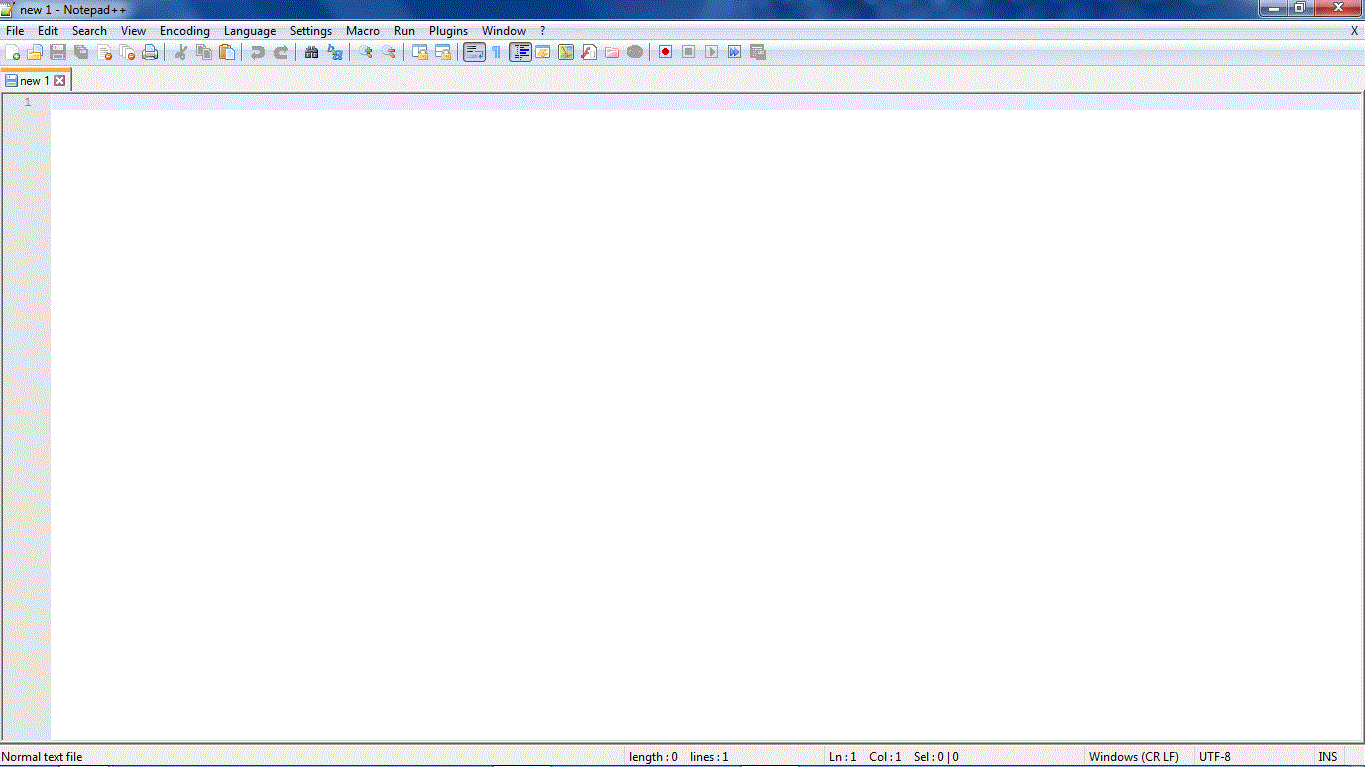
Notepad++ Text Editor:
However, as a junior secondary student, Notepad++ is a free editor that covers a lot of languages.
Follow this link to get Notepad++,
or just do a google search for "Notepad++".
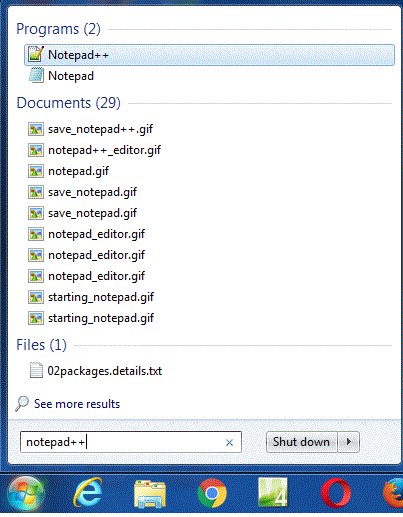
To start up Notepad++, click Start
and do a search for Notepad++.
How to Save and Run HTML and JavaScript Files for Junior Secondary Students
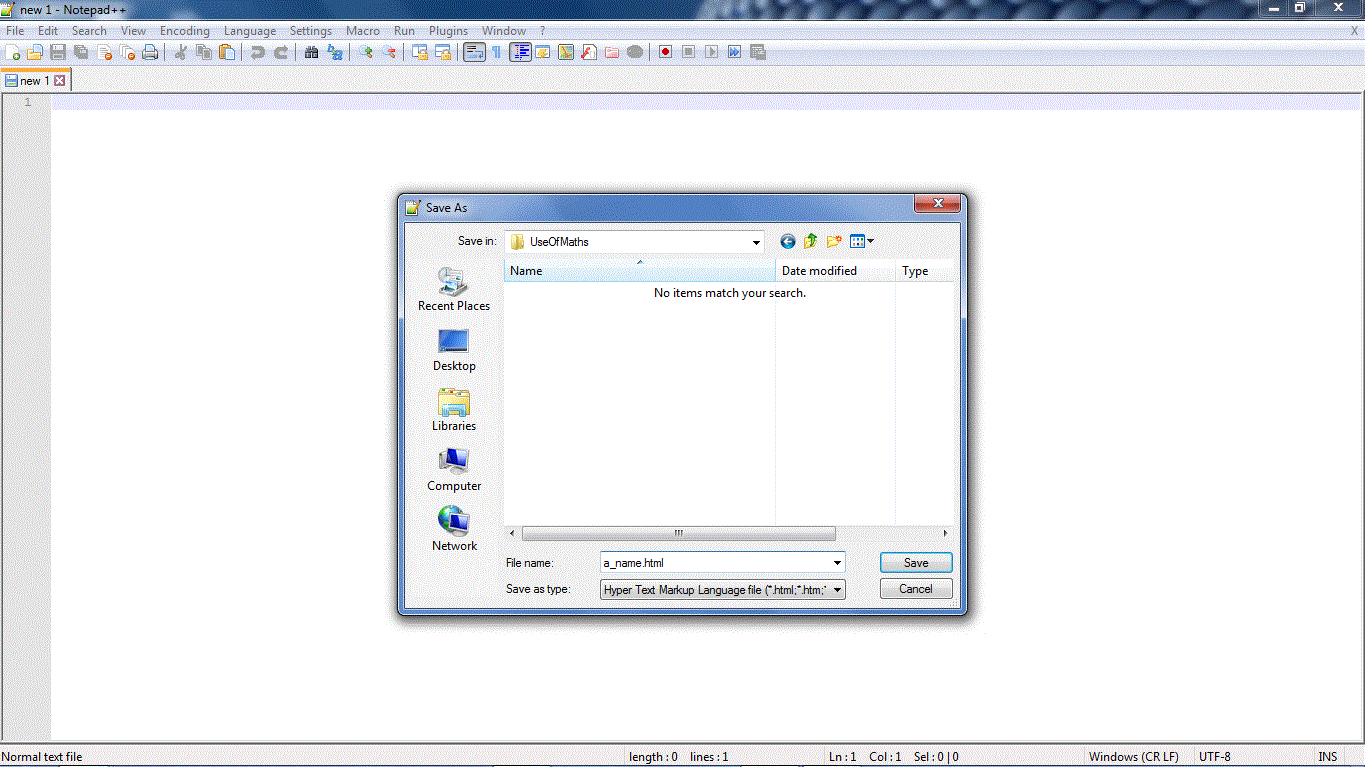
A crucial step in getting started with JavaScript on a laptop for junior secondary students is understanding the file saving process. To ensure your browser can read your code, you must:
- Click File, then Save As.
- Ensure the file extension is always `.html`.
- To view your page, either double-click the saved file, or use your editor's "Run" command to launch it in your preferred browser.
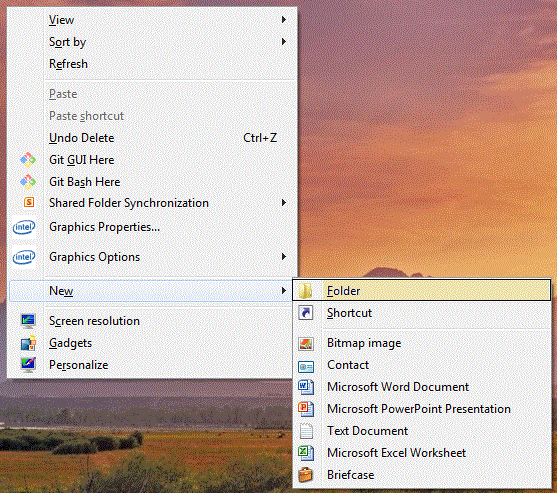
Tip: Create a dedicated "Coding" folder on your desktop for easy organization of all your coding for junior secondary students projects.
Right-click on a free area on your desktop, and from the menu that comes up select New, Folder. Name it Using Maths.
If you did not get the chance to change the New Folder name before it registered, just right-click on the folder and select Rename.
Laptop Browsers for Junior Secondary Students
Any modern browser will run JavaScript, but Google Chrome and Mozilla Firefox are recommended for beginners. They include developer tools that help you test and debug your code easily.
Note: Windows and Apple users, your factory browsers (Edge and Safari respectively), do just fine too!
How to View Web Pages for Junior Secondary Students
For the beginners or junior secondary students, to view web pages on a laptop is simple:
On your desktop, double-click on your Using Maths folder; you should
find your even_numbers.html file.
Double-click on it to view it on your default browser - or right-click on the
file and select Open with to use a specific browser.
Junior-Level JavaScript Coding Prerequisites | Getting Started on Mobile - Phone Users
If you are learning to code on a tablet or mobile phone, you will need a dedicated mobile code editor.
Mobile JavaScript Editors for Junior Secondary Students
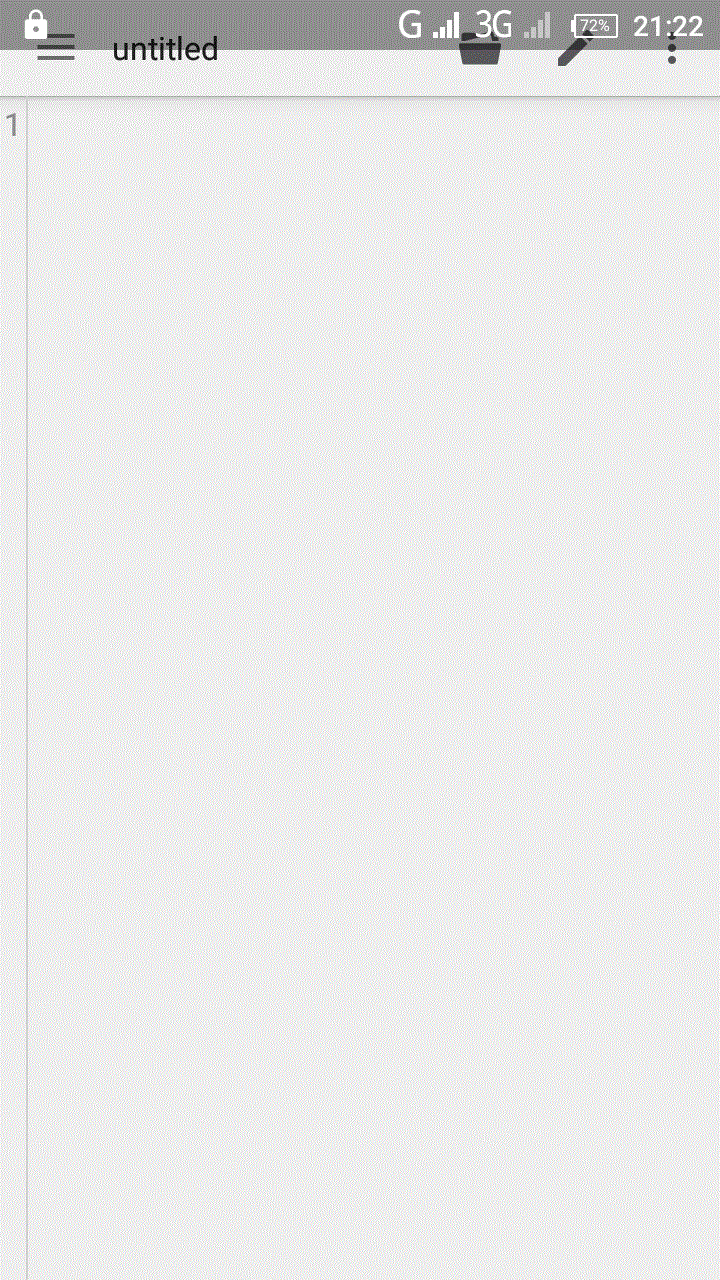
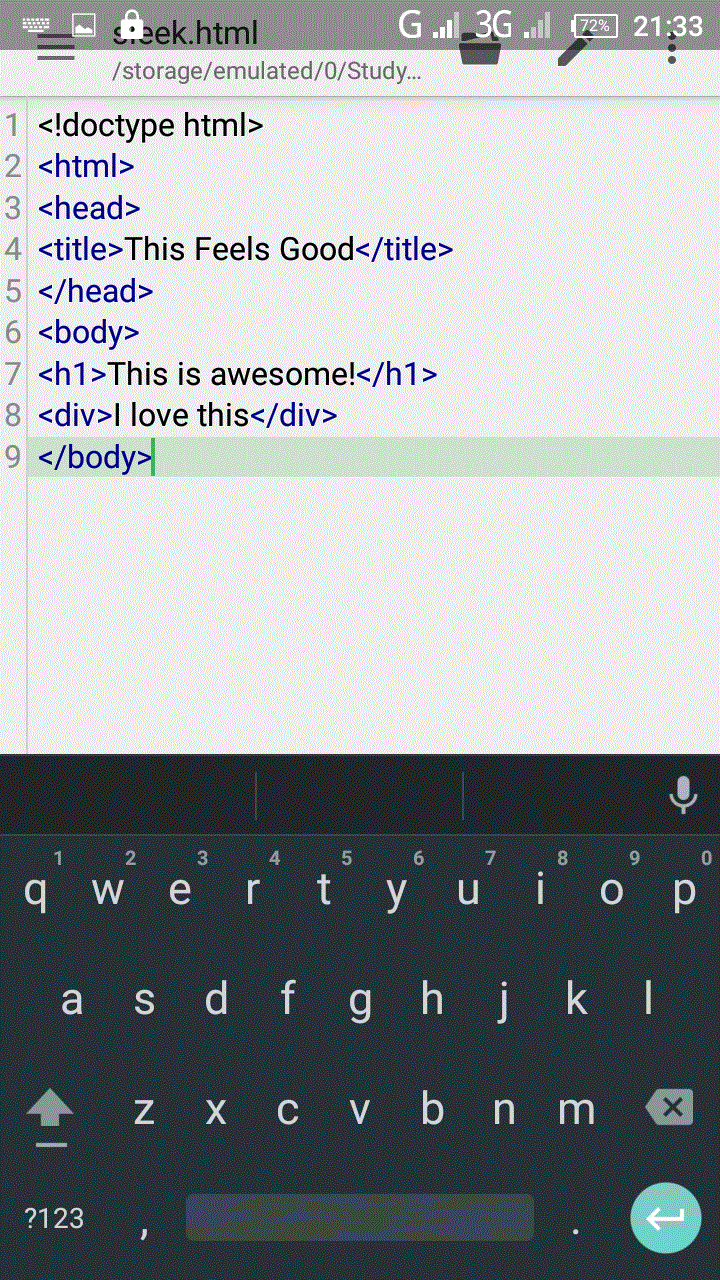
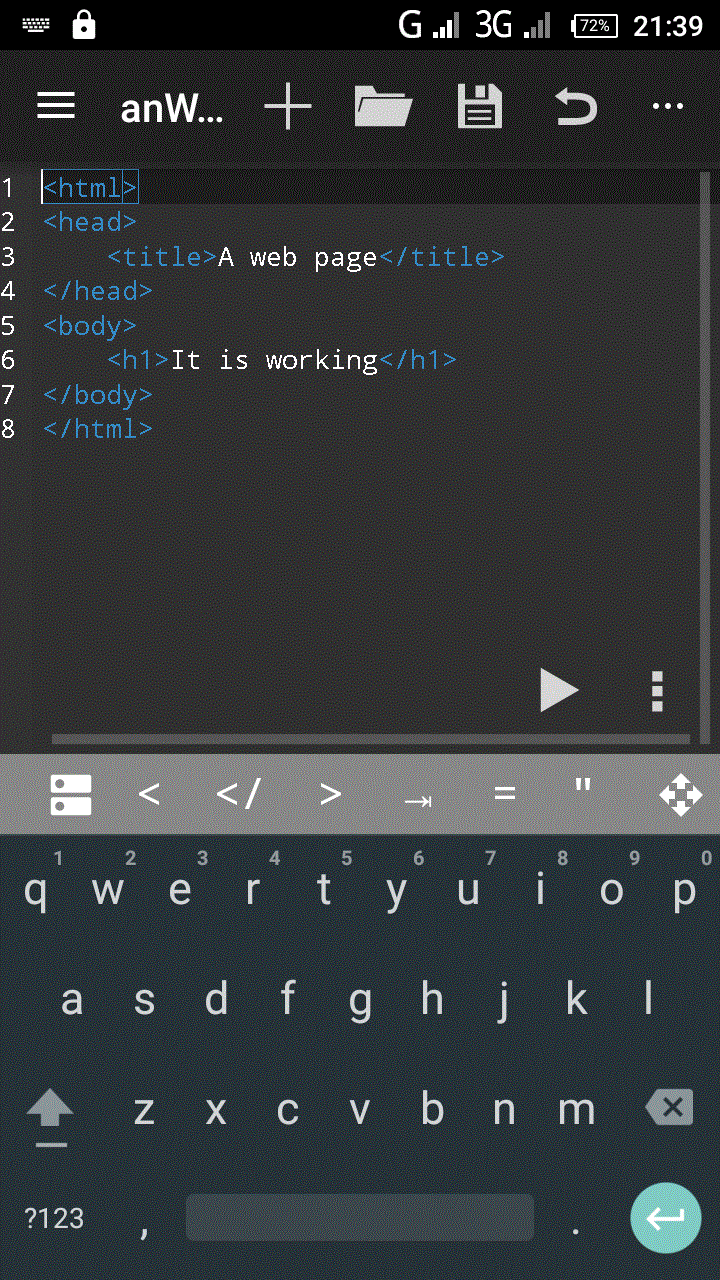
- Recommended Mobile Editor: For simplicity, we suggest QuickEdit or anWriter. These are the most recommended JavaScript editors for mobile users (junior secondary level) and are available on your device's app store.
- Browsers: You can use your device’s default browser (Safari, Edge) or download free options like Chrome or Firefox to view your web pages.
Tip: Make a special folder on your mobile for web files, preferably on your desktop or in your documents folder for easy access.
Enter your mobile device File Manager; with the view in All files, select a storage location (Phone or SD-Card) and tap on options -likely an ellipsis (...)- at the top of your screen.
Mobile Browsers for Junior Secondary Students
More likely than not you are viewing this page on a browser.
So you are good and ready.
However, for best views, as a junior secondary student, we recommend Mozilla Firefox,
Google's Chrome, or Opera Mini.
Note: Windows and Apple mobile users, your factory browsers (Edge and Safari respectively) do just fine too!
Notice: Our JavaScript colour coding follows that of Microsoft's WebMatrix.
Introductory JavaScript Tutorial for Junior Secondary Students
For a beginner-friendly JavaScript tutorial for kids and junior secondary students, summarised to only the key facts to help young learners
comprehend the JavaScript language and get started with utilising JavaScript for coding, check our
A beginner's Tutorial and Guide to the JavaScript Programming Language
from the Junior Secondary Category.
PC Images
How to find Notepad++
Notepad++
How to Save in Notepad++
Special Folder
Plus: You could still get a professional editor for JavaScript if you want to.
Mobile Editors
QuickEdit Portrait View
QuickEdit Portrait with Text
anWriter Portrait View

anWriter Portrait with Text
File Explorer
